


Who This Guide Is For
A note on the examples in this guide: The concepts, terminology, and architecture described here are grounded entirely in official UiPath Maestro documentation (linked throughout). However, the two build-along examples — Employee Grievance Management and IT Change Request Management — are scenarios constructed for this guide. This was a deliberate choice: working through a different scenario than the official docs forces you to actually apply the concepts rather than transcribe a tutorial.
You are a UiPath developer, solution architect, or business analyst who has heard about Maestro Case and wants to understand it from first principles — what it is, when to use it over standard BPMN, how it works under the hood, and how to build one end to end.
- Who This Guide Is For
- Part 1: Understanding What Maestro Case Actually Is
- 1.1 Maestro in One Paragraph
- 1.2 Two Orchestration Models — and Why They Are Different
- 1.3 The Decision Test
- 1.4 The Eight Signals That Tell You to Use Maestro Case
- 1.5 Real-World Scenarios Where Maestro Case Is the Right Answer
- Part 2: The Architecture — Five Layers You Must Understand
- Layer 1: Event Triggers — How a Case Begins
- Layer 2: The Case Entity — Single Source of Truth
- Layer 3: The Case Plan — Design-Time Blueprint
- Layer 4: The Case Manager — Runtime Orchestration
- Layer 5: The Runtime Experience — Two Interfaces for Two Audiences
- Part 3: Core Concepts — The Building Blocks
- 3.1 Case Keys: System vs. External
- 3.2 Stages: Primary vs. Secondary
- 3.3 Tasks: Types and Execution Modes
- 3.4 Rules: The CMMN WHEN / IF / ACTION Pattern
- 3.5 Exit Rules vs. Complete Rules — A Critical Distinction
- 3.6 SLAs and Escalations
- 3.7 Case Personas
- Part 4: Designing the Case Entity Schema
- Step 1: Understand the Three Out-of-the-Box Data Objects
- Step 2: Choose Where the Entity Lives
- Step 3: Classify Every Field Into Two Categories
- Step 4: Establish Field Ownership — One Writer Per Field
- Step 5: Reference Schema — Employee Expense Reimbursement
- Step 6: Wire Input and Output Mappings to Tasks
- Step 7: Validate the Schema Against Rules
- Common Schema Troubleshooting
- Part 5: Step-by-Step Build — Employee Grievance Management Case
- Why Employee Grievance Management Needs Maestro Case
- What We Are Building
- Prerequisites
- Step 1: Create the Case Project
- Step 2: Build the Case Entity Schema
- Step 3: Configure Case Keys
- Step 4: Configure the Case Trigger
- Step 5: Add Primary Stages
- Step 6: Add Secondary Stages
- Step 7: Build the Intake & Triage Stage
- Step 8: Build the Informal Resolution Stage
- Step 9: Build the Formal Investigation Stage
- Step 10: Build the Decision Stage
- Step 11: Configure Secondary Stage Rules
- Step 12: Configure SLAs
- Step 13: Configure Stage Personas
- Step 14: Configure the Case App Layout
- Step 15: Publish and Deploy
- What This Build Demonstrates That the Tutorial Does Not
- Part 6: A Second Pattern — IT Change Request Management
- Why IT Change Requests Need Maestro Case
- Stage Map
- Pattern 1 — Classification-Driven Routing
- Pattern 2 — The Automatic Rollback Loop (No Human Routing Decision)
- Case Entity Fields Specific to This Pattern
- How This Differs From the Grievance Case in Part 5
- Part 7: Operating Live Cases — Case Instance Management
- Part 8: The Component Dictionary — Quick Reference
- Part 9: The Five Architectural Principles to Remember
- Quick Reference: Common Mistakes and How to Avoid Them
- Documentation Reference
This is not a feature summary. It is a structured, step-by-step build guide anchored entirely in official UiPath documentation. Every concept is linked to its source. Every step is in the order you would actually do it.
By the end, you will have built two complete cases from scratch — an employee grievance management case and an IT change request case — and understood every architectural decision behind them.
Part 1: Understanding What Maestro Case Actually Is
1.1 Maestro in One Paragraph
UiPath Maestro is a cloud-native orchestration platform that unifies automation, AI agents, and human interactions into streamlined, end-to-end business processes. It allows organizations to model workflows visually using BPMN (Business Process Model and Notation), define business rules with DMN (Decision Model and Notation), and coordinate multiple actors — including RPA bots, AI agents, and people — within a single process.
Source: Maestro Overview
1.2 Two Orchestration Models — and Why They Are Different
Maestro gives you two distinct ways to orchestrate work. Choosing the wrong one is the most common mistake beginners make.
Maestro BPMN is a directed, sequence-based workflow. It runs from start to finish along a path you define at design time. It supports branching, parallel execution, and human-in-the-loop tasks — but the overall structure is a fixed flow.
Maestro Case orchestrates long-lived, goal-driven work about a specific situation — a case. Instead of a fixed sequence, a case plan defines stages (named phases) and the rules that govern transitions between them. The actual path through the plan is determined dynamically at runtime based on case data.


The decision framework from the official documentation is precise:
Use Maestro BPMN when the sequence of steps is known and repeatable. Use Maestro Case when work cannot be fully defined upfront — when multiple stages involve frequent decision points, progress depends on evaluating outcomes, and the process is long-running, exception-heavy, and requires human judgment at key moments.
Source: Maestro BPMN vs. Maestro Case
1.3 The Decision Test
Before building anything, apply this quick test from UiPath’s own documentation:
If the next step depends on what just happened and no single flowchart can capture every path — consider Maestro Case. If the process follows the same path every time — use Maestro BPMN.
Source: Maestro BPMN vs. Maestro Case
1.4 The Eight Signals That Tell You to Use Maestro Case
From the official documentation, case management adds the most value when:
- Work is long-running — spanning hours, days, or weeks rather than seconds
- The process is exception-heavy — the next step depends on what just happened, and no single flowchart captures every path
- Multiple roles and systems are involved — case workers, managers, AI agents, and external integrations all contribute
- SLA tracking and escalation are critical — deadlines matter, and breaches must trigger specific actions
- Audit trails are required — every decision, data change, and transition must be recorded
- Re-entry and rework loops are common — cases frequently return to earlier stages for corrections or additional investigation
- Multiple entry channels exist — the same type of case can originate from a portal, email, API call, or external event
- Persistent case data accumulates — a central business record grows richer as each stage completes
Source: Introduction to Maestro Case
1.5 Real-World Scenarios Where Maestro Case Is the Right Answer
The following table maps directly to UiPath’s documented use cases:
| Business Scenario | Why Maestro Case |
|---|---|
| Insurance claims | Long-running, multi-party (claimant, adjuster, inspector), frequent exceptions, SLA-driven |
| Disputes and chargebacks | Back-and-forth between parties, evidence gathering, escalation paths, non-linear progression |
| Loan origination and underwriting | Multiple review stages, conditional paths based on risk scores, regulatory requirements |
| KYC/AML remediation | Document collection across stages, regulatory decision points, audit trail requirements |
| Customer escalations and complaints | Tiered resolution, re-entry when a fix does not hold, SLA commitments, multi-team handoffs |
| Vendor/Supplier onboarding | Multi-stage vetting (legal, compliance, finance), conditional stages based on vendor type, document collection |
| Order fulfillment exceptions | Backorders, partial shipments, returns — multi-system coordination with SLA tracking |
| Public sector investigations and referrals | Ad-hoc approvals, cross-department coordination, policy-dependent routing |
Source: Introduction to Maestro Case — Business Scenarios
Part 2: The Architecture — Five Layers You Must Understand
Before you open Studio Web, you need a mental model of how Maestro Case works end to end. The official documentation describes it as a five-layer stack. Data flows downward from event sources through orchestration and execution, and surfaces upward into the business user experience.
Source: The Maestro Case Lifecycle

Layer 1: Event Triggers — How a Case Begins
Event triggers are the entry points that create a case instance and hydrate the Case Entity with initial data. A single case plan can define multiple triggers so that the same type of case can originate from different channels.
| Trigger Source | Description | Example |
|---|---|---|
| Data Fabric entity | A “Row created” event on a Data Fabric entity starts the case. Entity fields become case fields. | A new row in a Home Claims entity creates a property insurance case |
| Wait for connector | An Integration Service connector event starts the case. The API payload becomes the case entity. | A Microsoft Teams channel message triggers a Withdrawn stage |
| Portal / Form | A user submits data through a web form | An employee submits an expense report through a self-service portal |
| An inbound email is parsed and its data is mapped to entity fields | A forwarded receipt email creates a new claim line item | |
| API | An external system calls the case creation endpoint | An ERP system triggers a claim case on a policy event |
| Scheduled | A time-based trigger creates or follows up on cases | A daily job creates follow-up cases for stale items |
A case plan can have more than one trigger. For example, a grievance management case might accept submissions from a self-service portal, an inbound email parsed by IXP Communications Mining, and a manager referral — all mapping to the same entity.
Source: The Maestro Case Lifecycle — Layer 1
Layer 2: The Case Entity — Single Source of Truth
The Case Entity is the persistent, structured data object at the center of every case instance. It lives for the entire lifetime of the case and serves as the single source of truth that all stages, tasks, and transition conditions read from and write to.
Every case project automatically creates three data objects:
| Object | Purpose |
|---|---|
| Case Entity | The central business data model. Holds structured data used by conditions and tasks. |
| Case Documents | Attachments and files associated with the case (receipts, photos, contracts) |
| Case Comments | Notes, annotations, and communications added by participants throughout the lifecycle |
All three share an immutable caseID system field that is auto-generated at case creation and ties all case data together.
The write-back pattern is the primary mechanism for moving data through a case:
- A task reads specific fields from the Case Entity via input mapping
- The task performs its work (validation, agent reasoning, human review, RPA extraction)
- The task writes its results back to the Case Entity via output mapping
- Updated entity values cause transition rules to re-evaluate, potentially activating the next stage or task
Task A writes → Case Entity updates → Rules evaluate → Next stage activates
Design your entity schema so that each field is written by exactly one task. If multiple tasks write to the same field, the last writer wins and earlier data is lost. Use namespaced fields (for example, validation.result vs categorization.result) to prevent collisions.
Source: The Maestro Case Lifecycle — Layer 2
Layer 3: The Case Plan — Design-Time Blueprint
The Case Plan is the visual blueprint you build in Studio Web. It defines the possible phases a case can move through and the rules that govern transitions. Unlike a linear workflow, a Case Plan does not prescribe a single fixed path — the actual path is determined at runtime based on data and decisions.
A Case Plan consists of four elements: Event Triggers, Stages, Tasks, and Rules.
Source: The Maestro Case Lifecycle — Layer 3
Layer 4: The Case Manager — Runtime Orchestration
The Case Manager is the event-driven orchestrator of each case. It drives lifecycle decisions — which stage to activate next, which tasks to start, when a stage should complete or exit early, and when to escalate — based on events arriving on the case.
It orchestrates using two complementary methods:
- Rules (primary) — deterministic CMMN rules defined in the Case Plan. Where a rule resolves the decision, it is taken. This keeps the high-volume happy paths predictable, auditable, and cheap.
- Agent reasoning (fallback) — when no rule covers the situation (a gap, an exception, or a judgment call), the Case Manager Agent reasons over the Case Entity, the case plan, and configured policies to pick the next action.
The event processing cycle:
- Event received — a trigger fires, a task completes, a Case Entity field changes, or a timer arrives
- Rule evaluation — the Case Manager evaluates all applicable rules whose WHEN matches the event and whose IF condition holds
- Agent fallback — for decisions not covered by a deterministic rule, the Case Manager Agent reasons over case state
- State update — stages and tasks transition; the Case Entity is updated; new events may be emitted
- Case completion — when a case-level complete or exit rule fires (or the agent decides the case is done), the case closes
Source: The Maestro Case Lifecycle — Layer 4
Layer 5: The Runtime Experience — Two Interfaces for Two Audiences
The Case App is for business users (case workers and case managers). It surfaces:
- Case list — a filterable view of all case instances with status, priority, and SLA indicators
- Case detail view — the current stage, Case Entity data, task statuses, timeline of events, and full audit trail
- Task inbox (My Work) — pending human tasks awaiting action: forms, approvals, reviews
- Quick actions — complete, reopen, reassign, escalate, add notes
Case Instance Management is for process operators. It provides:
| Operator Action | Description |
|---|---|
| Pause | Temporarily halt a running case. SLA timers pause. No tasks activate until resumed. |
| Resume | Restart a paused case. SLA timers resume from where they stopped. |
| Cancel | Terminate a case permanently. All running tasks stop. |
| Migrate | Move a live case instance to a newer version of the case plan, preserving current state and data. |
| Retry | Re-execute a failed task or transition to recover from transient errors. |
Source: The Maestro Case Lifecycle — Layer 5
Part 3: Core Concepts — The Building Blocks
These concepts must be clear before you build. They come directly from the UiPath Core Concepts reference.
Source: Introduction to Maestro Case — Core Concepts
3.1 Case Keys: System vs. External
Each case is uniquely identified by a case key:
| Key Type | Description | Example |
|---|---|---|
| System key | Auto-generated by Maestro on case creation | HC-1234, CLM-00891 |
| External (customer-defined) key | An upstream ID passed at creation so the same real-world case is recognized across tools | CRM case number, policy number, ERP order ID |
Use external keys when the case originates in another system (CRM, ERP, ticketing tool) so that humans and integrations can correlate the case across tools without maintaining a separate mapping table.
Source: Defining Case Keys
3.2 Stages: Primary vs. Secondary
Stages are the named phases of a case — for example, Intake, Review, Settlement, Closure.
| Stage Kind | Purpose | How It Is Reached | Visibility in Case App |
|---|---|---|---|
| Primary stage | The expected progression of the case | Can be entered through edges from a preceding stage on the canvas, or by its configured entry rule | Shown as core stage nodes in the Case App timeline |
| Secondary stage | Exception or alternative paths that can occur at any time (e.g., Request Info, Denied, Withdrawn) | No incoming edges — reached only when its entry rule evaluates true | Surfaced separately when active; not part of the core timeline |
Marking a stage as secondary means: do not wire me into the main lifecycle — I will activate myself whenever my entry condition is met. This is what lets a case jump into Request Info mid-Review, or into Withdrawn from anywhere, without the designer having to draw edges from every possible source.
Stages can be marked required or optional. A case cannot complete until every required stage has completed. Optional stages activate only when their entry conditions are met and can be skipped without blocking the case.
Multiple stages can be active in the same case at the same time — parallel processing is controlled by entry rules.
Source: Introduction to Maestro Case — Stages
3.3 Tasks: Types and Execution Modes
A task is a unit of work inside a stage. Maestro Case supports the following task types:
| Task Type | Description |
|---|---|
| Human action | Forms, approvals, and clarifications assigned to a person |
| RPA Workflow | UI automation for legacy systems, extraction, and reconciliation |
| API Workflow | System-to-system operations via workflow |
| Execute Connector | Invoke a connector activity (send notification, create record in external system) |
| AI Agent (UiPath) | Autonomous reasoning over data for judgment-based work |
| External Agent | Third-party AI agent invoked via API |
| Maestro Agentic Process | A multi-step BPMN process invoked as a task |
| Child Case | Another case is spawned as a child with its own lifecycle |
| Wait for Timer | Pause until a duration elapses or a target date is reached |
| Wait for Connector Event | Pause until an external event arrives via a connector |
Every task runs in one of three execution modes:
| Execution Mode | Behavior | Example |
|---|---|---|
| Sequential | The task executes in a defined order within the stage. Sequences can include parallel branches. | Verify income → (Run credit check ∥ Pull employment history) → Calculate DTI → Generate decision |
| Event-driven | Has an entry rule and fires whenever the event makes the rule evaluate true. Can fire multiple times if the event recurs. | Request additional documents fires WHEN a verification task flags a missing document IF Documents.Missing == true |
| Ad-hoc | Defined in the case plan but only starts when a user manually triggers it at runtime | Escalate to supervisor — kicked off by the case worker on judgment |
When a stage is re-entered, you control which tasks should re-execute using the run only once flag:
run only once = true— the task is skipped on re-entry. Its previous output is retained.run only once = false(default) — the task resets and runs again every time the stage is re-entered, producing fresh output.
Source: Introduction to Maestro Case — Tasks
3.4 Rules: The CMMN WHEN / IF / ACTION Pattern
Rules control lifecycle movement and are the mechanism that makes case management non-linear. They follow the CMMN (Case Management Model and Notation) pattern and are event-driven — a rule fires only when a relevant event occurs on the case.
Every rule has three parts:
- WHEN — the event that triggers evaluation. Internal events include
CaseCreated,StageEntered,StageCompleted,StageExited,TaskCompleted,CaseSlaAtRisk,CaseSlaBreached,StageSlaAtRisk,StageSlaBreached, and changes to case entity fields. External events include Integration Service connector events, timer firings, child case completion, and direct API calls. - IF (optional) — the condition over the case entity that must also be true for the rule to take effect. If omitted, the rule fires on every matching WHEN event.
- ACTION — what the rule does when it fires.
Rules are scoped to three levels:
Case-level rules:
| Rule | Purpose | Example |
|---|---|---|
| Case complete | Mark the entire case as completed | WHEN all required stages complete IF Outcome == "Approved" |
| Case exit | Terminate the case before it reaches normal completion | WHEN Application.Status changes IF Application.Status == "Withdrawn" |
Stage-level rules:
| Rule | Purpose | Example |
|---|---|---|
| Entry | Gate when the stage begins | WHEN Application.Submitted event arrives IF Application.Type == "Mortgage" |
| Complete | Decide when the stage finishes normally | WHEN any task in the stage completes IF all required tasks are Done |
| Exit | Bail out of the stage early, even if incomplete | WHEN UnderwritingDecision changes IF UnderwritingDecision == "Reject" |
| Re-entry | Return to a previously completed stage for controlled rework | WHEN Verification.Result changes IF Verification.Result == "Failed" |
Entry rules carry an interrupting toggle:
interrupting = true— all currently active stages are automatically exited and the case is forced into the newly entering stage. Use for hard exception paths like Withdrawn or Fraud Hold.interrupting = false— the new stage activates alongside any existing active stages. Parallel processing.
Defaults: primary stages default to interrupting = false (join in parallel). Secondary stages default to interrupting = true (take over the case).
Complete and Exit rules carry an action determining what happens after the stage ends: complete/exit the case, wait for manual selection, or return-to-origin.
Task-level rules:
| Rule | Purpose | Example |
|---|---|---|
| Entry | Gate when a task starts. Used by event-driven tasks to fire on a triggering event. | WHEN a verification task flags a missing document IF Documents.Missing == true |
Source: Introduction to Maestro Case — Rules
3.5 Exit Rules vs. Complete Rules — A Critical Distinction
This is one of the most misunderstood distinctions in Maestro Case.
A Complete rule fires when the work in a stage finishes normally — all required tasks are done and the output meets the completion condition. It represents successful forward progress.
An Exit rule fires when a change in data makes continued processing in the current stage unnecessary or pointless — it acts as a circuit breaker. The stage is abandoned mid-flight, not completed. Tasks that were running when the exit fires are stopped.
Example:
In an Underwriting stage:
- Complete rule: WHEN all underwriting tasks finish IF
CreditScore >= 650 AND DTI <= 43 - Exit rule: WHEN
UnderwritingDecisionis written IFUnderwritingDecision == "Hard Decline"— there is no point continuing the stage; the case should immediately route to the Declined secondary stage.
Both Complete and Exit rules carry an action (complete the case, exit the case, wait for manual selection, return-to-origin) that determines what Maestro does next.
Source: Exit Rules and Early Stage Termination
3.6 SLAs and Escalations
Define SLAs and escalation rules at both case and stage levels:
- Case-level SLA — overall resolution target (e.g., resolve within 48 hours)
- Stage-level SLA — localized due time (e.g., review within 24 hours)
- SLA states: on-track, at-risk, or breached — surface as badges in case lists and detail views
- Escalations — rules triggered when an SLA is at risk or breached (reassign, notify management, create a priority flag)
- Pause/Resume — SLA timers can be paused when the case waits on external input
Source: Introduction to Maestro Case — SLAs and Escalations
3.7 Case Personas
Maestro Case enforces stage-aware access through personas so the right people see and act at the right time.
A Case Persona is a design-time abstraction representing a role within a case type. Personas decouple a case’s access needs from the organization’s identity structure, making case definitions portable across organizations and tenants.
- At design time: the case designer creates personas and scopes each to specific stages
- At deploy time: an admin binds each persona to users or user groups
- At runtime: the system resolves the user’s persona(s) and enforces stage scoping
Example for a Loan Processing case:
| Persona | Application | Verification | Underwriting | Disbursement |
|---|---|---|---|---|
| Loan Officer | yes | |||
| Verification Analyst | yes | |||
| Underwriter | yes | |||
| Branch Manager | yes | yes | yes | yes |
Tasks within a stage are assigned to a persona, not a specific user. The system resolves persona to role/group to users at runtime.
Source: Introduction to Maestro Case — Case Personas
Part 4: Designing the Case Entity Schema
The case entity schema is the most important design decision you will make. A poorly designed schema causes data collisions, stale computed values, and broken rules. Do this before opening the stage canvas.
Source: Designing a Persistent Case Entity Schema
Step 1: Understand the Three Out-of-the-Box Data Objects
| Object | Purpose |
|---|---|
| Case Entity | Holds all structured business data that stages, tasks, and rules read from and write to |
| Case Documents | Stores attachments and files associated with the case |
| Case Comments | Stores notes, annotations, and communications added by case workers throughout the lifecycle |
All three share an immutable caseID system field. Focus your schema design on the Case Entity — it is the single source of truth for all case processing logic.
Step 2: Choose Where the Entity Lives
| Source | Description | When to Use |
|---|---|---|
| Native in Data Fabric (recommended) | Create the entity as a native business entity in Data Fabric and link it to your case | New processes where you own the data model |
| Virtual Data Object (VDO) in Data Fabric | Register an external source as a VDO in Data Fabric and link the VDO to the case | Entity data lives in an external system (CRM, ERP) and you want to reference it without duplicating |
| Case trigger payload | Pass existing data in the case creation trigger; the payload fields become case fields | Lightweight integrations where you hydrate the case at creation time |
Step 3: Classify Every Field Into Two Categories
| Category | Definition | Characteristics | Examples |
|---|---|---|---|
| Input fields | Data provided when the case is created by a trigger, form, or external system | Populated at creation. Read-only after hydration. | policyNumber, claimantName, dateOfLoss, lossDescription |
| Computed fields | Data produced by tasks during case processing. Start empty, written back as tasks complete. | Empty at creation. Written by exactly one task. | validationResult, damageEstimate, adjusterDecision, paymentReference |
Input fields such as employeeId, policyNumber, or reportId should never be overwritten by tasks. Document these fields as read-only in your schema.
Step 4: Establish Field Ownership — One Writer Per Field
Field ownership is the most critical principle for preventing data collisions. Each computed field in the entity must be written by exactly one task. If two tasks write to the same field, the last writer wins and previous data is lost.
Use namespaced fields to avoid ambiguity when multiple tasks produce similar output types:
- Use
photoAnalysisfor the output of an image analysis agent task - Use
fieldInspectionfor the output of a human field inspection task - Avoid a generic
analysisResultfield that multiple tasks might contend for
Step 5: Reference Schema — Employee Expense Reimbursement
This example uses a corporate expense reimbursement case — a process most organizations run with spreadsheets and email chains, which makes it an ideal candidate for Maestro Case.
Business context: An employee submits an expense report. It goes through receipt validation, policy compliance checking, line-item categorization, manager approval, and finance sign-off before payment is issued. Exceptions include receipts with missing data, amounts exceeding policy thresholds, and flagged anomalies from the finance system.
Why this needs Maestro Case and not BPMN: Reports over a certain threshold require a second-level approval that standard reports skip. Reports with flagged anomalies loop back to the employee for clarification. International reports require a currency conversion task that domestic reports never touch. No single sequence handles all paths.
{
  "entityName": "ExpenseReport",
  "fields": {

    // --- Input fields (set at submission, never overwritten by processing tasks) ---
    "reportId":           { "type": "string",  "required": true, "generated": true },
    "submittedBy":        { "type": "string",  "required": true },
    "employeeEmail":      { "type": "string",  "required": true },
    "department":         { "type": "string",  "required": true },
    "costCenter":         { "type": "string",  "required": true },
    "submissionDate":     { "type": "date",    "required": true },
    "tripPurpose":        { "type": "string",  "required": true },
    "totalClaimed":       { "type": "decimal", "required": true },
    "currency":           { "type": "string",  "required": true },
    "lineItems":          { "type": "array",   "items": "ExpenseLineItem" },
    "receiptFiles":       { "type": "array",   "items": "url" },

    // --- Computed fields (each owned by exactly one task) ---
    "receiptValidation":  { "type": "object",  "writtenBy": "Validate Receipts" },
    "categorizedItems":   { "type": "array",   "writtenBy": "Categorize Line Items" },
    "policyCheckResult":  { "type": "object",  "writtenBy": "Policy Compliance Check" },
    "anomalyFlags":       { "type": "array",   "writtenBy": "Flag Anomalies" },
    "convertedAmount":    { "type": "decimal", "writtenBy": "Currency Conversion" },
    "managerDecision":    { "type": "string",  "enum": ["approved", "rejected", "more_info_needed"] },
    "financeDecision":    { "type": "string",  "enum": ["approved", "rejected", "on_hold"] },
    "approvedAmount":     { "type": "decimal", "writtenBy": "Finance Approval" },
    "paymentReference":   { "type": "string",  "writtenBy": "Trigger Payment" },
    "rejectionReason":    { "type": "string",  "writtenBy": "Manager Approval OR Finance Approval" }
  }
}
Notice rejectionReason has a comment indicating two possible writers — this is a design smell. In production, resolve it by splitting into managerRejectionReason and financeRejectionReason so each is owned by exactly one task and downstream rules can distinguish the source.
Step 6: Wire Input and Output Mappings to Tasks
After defining the schema, connect it to tasks through input and output mappings.
Input mapping example — Validate Policy task:
"input": {
  "policyNumber": "caseEntity.policyNumber"
}
Output mapping example — Validate Policy task:
"output": {
  "caseEntity.policyValid": "taskOutput.policyValid"
}
Cross-check every task’s output mapping against your schema annotations. Confirm that no two tasks write to the same Case Entity field.
Step 7: Validate the Schema Against Rules
Stage rules (entry, complete, exit, re-entry) evaluate against Case Entity fields. Before building the stage canvas, verify that:
- Every field referenced in a rule’s IF clause is present in the schema
- The field is written by a task that completes before the rule evaluates
- The field type matches the operator used in the rule
Example — Exit rule on Intake stage depends on the policyValid field:
WHEN PolicyCheckCompleted event arrives
  IF caseEntity.policyValid == false
Confirm that the Validate Policy task writes policyValid and completes within the Intake stage before this Exit rule evaluates.
Common Schema Troubleshooting
| Problem | Cause | Resolution |
|---|---|---|
| A computed field contains unexpected or stale data | Multiple tasks write to the same field | Audit output mappings. Assign each field to exactly one task and use namespaced field names. |
| A rule never evaluates to true | The field referenced in the rule’s IF clause is not yet written by the time the rule evaluates | Verify that the task responsible for writing the field completes within the current or a preceding stage |
| Input fields are being overwritten during processing | A task output mapping targets an input field | Remove the output mapping that targets the input field. Document input fields as read-only. |
Source: Designing a Persistent Case Entity Schema
RPA to Agentic AI: The Complete Transition Guide for Automation Professionals (2026)
Part 5: Step-by-Step Build — Employee Grievance Management Case
This section builds an original case from scratch: an Employee Grievance Management system. This process is deliberately chosen because it does not appear in any UiPath tutorial, it has all the characteristics that make Maestro Case the right choice, and it is a process most mid-to-large organizations actually need.
Why Employee Grievance Management Needs Maestro Case
When an employee files a grievance, the journey is never linear. It may go to an HR officer, then to a manager, then back to HR if the manager’s response is disputed. A formal investigation may be triggered mid-process. The employee may withdraw at any point. The whole thing must be auditable to the day under employment law in most jurisdictions.
Every one of the eight Maestro Case signals applies:
- Long-running — grievances typically take 5–30 business days to resolve
- Exception-heavy — escalations, withdrawals, appeals, and formal investigation triggers are routine
- Multi-role — HR Officer, Department Manager, HR Director, Legal Counsel each own specific stages
- SLA-driven — employment law in most regions mandates response within defined timeframes
- Full audit trail required — every decision, communication, and document exchange must be recorded
- Rework loops — if an informal resolution is rejected by the employee, the case re-enters formal investigation
- Multiple entry channels — employees submit via self-service portal, email, or manager referral
- Persistent case data — evidence, responses, and decisions accumulate across stages and are needed at every subsequent stage
What We Are Building
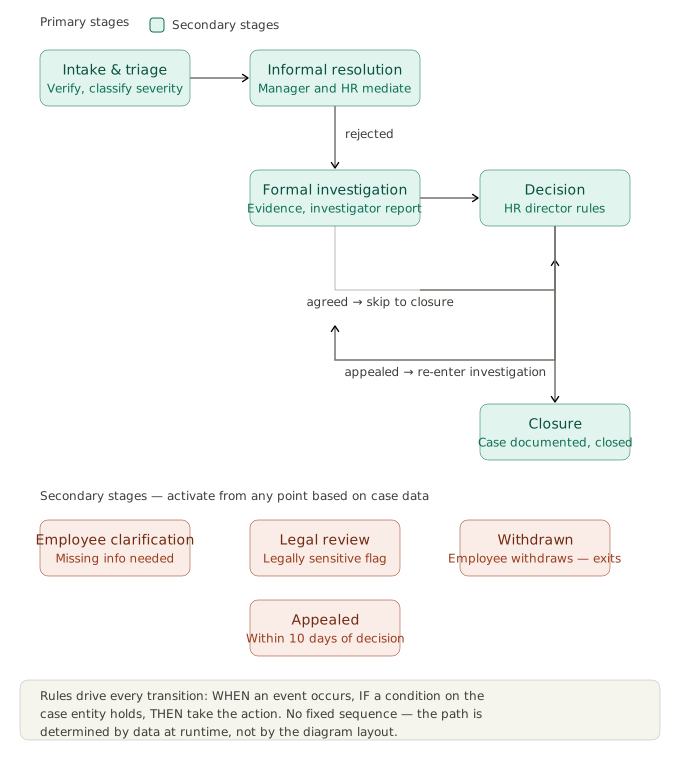
[Intake & Triage] → [Informal Resolution] → [Formal Investigation] → [Decision] → [Closure]
                             ↕
            [Employee Clarification]  (secondary — missing information)
            [Legal Review]            (secondary — activated for serious allegations)
            [Withdrawn]               (secondary — employee withdraws at any point)
            [Appealed]                (secondary — employee appeals the Decision)
Prerequisites
- UiPath Automation Cloud with Maestro enabled
- Studio Web access
- An HRIS system accessible via Integration Service connector (for employee record lookups)
- An email connector configured (for notifications)
Step 1: Create the Case Project
Open Studio Web. Select New Project → Case Management Project. Name it EmployeeGrievanceManagement. Select your Orchestrator folder.
You will land on the Case Plan canvas with the Data Manager panel on the left, the stage canvas in the center, and the Properties panel on the right.
Step 2: Build the Case Entity Schema
Before touching the stage canvas, design the entity. Open the Data Manager panel and create a new entity called GrievanceCase.
Input fields — set at submission, read-only:
| Field | Type | Required | Notes |
|---|---|---|---|
grievanceId | string | yes | Auto-generated |
submittedBy | string | yes | Employee ID |
employeeName | string | yes | Resolved from HRIS at trigger |
employeeEmail | string | yes | |
department | string | yes | |
reportingManager | string | yes | Manager employee ID |
grievanceCategory | string | yes | e.g., harassment, pay dispute, working conditions |
grievanceDescription | string | yes | Free text from the employee |
submissionDate | date | yes | Auto-populated |
evidenceFiles | array | no | Uploaded documents |
severity | string | yes | low / medium / high — self-reported |
Computed fields — written by tasks, empty at creation:
| Field | Type | Written By |
|---|---|---|
hrAssessment | object | HR Triage Agent |
classifiedSeverity | string | HR Triage Agent (overrides self-reported severity if needed) |
managerResponse | object | Manager Response task |
employeeResponseToManager | string | Employee Feedback task |
informalResolutionOutcome | string (enum: agreed / rejected / withdrawn) | HR Officer decision task |
investigationFindings | object | Investigator Report task |
legalReviewNotes | object | Legal Counsel task |
formalDecision | string (enum: upheld / partially_upheld / not_upheld) | HR Director decision task |
decisionRationale | string | HR Director decision task |
closureNotes | string | Closure task |
Note on namespacing: managerResponse and employeeResponseToManager are deliberately separate fields rather than a generic responseField. This prevents the write-back collision that would occur if both the Manager Response task and the Employee Feedback task targeted the same field.
Step 3: Configure Case Keys
In the Case Settings panel:
- System key prefix:
GRV-— produces keys likeGRV-1042 - External key: map to
submittedBy+submissionDateconcatenated — or, if your HRIS generates a case reference number at submission, use that as the external key
The external key lets HR officers look up a Maestro case using the reference number the employee was given at submission — without needing to know Maestro’s internal ID.
Step 4: Configure the Case Trigger
This case supports two trigger channels:
Trigger 1 — Self-service portal form submission:
- Type: API (a form submission calls the Maestro case creation API)
- Payload fields map to all input fields in the entity
Trigger 2 — Manager referral via email:
- Type: Wait for Connector Event (email connector, inbound email to grievance@company.com)
- IXP Communications Mining parses the email body to extract the submitter name, department, grievance category, and description into structured fields
- Maps to the same input fields as Trigger 1
Both triggers create a GrievanceCase instance — the lifecycle is identical regardless of channel.
Step 5: Add Primary Stages
On the canvas, add four primary stages connected with edges:
[Intake & Triage] → [Informal Resolution] → [Formal Investigation] → [Decision] → [Closure]
Mark all four as required.
Step 6: Add Secondary Stages
Add these stages and toggle each as Secondary:
- Employee Clarification — when the grievance description lacks enough information to proceed
- Legal Review — activated when the HR triage classifies the allegation as legally sensitive (harassment, discrimination, whistleblowing)
- Withdrawn — when the employee withdraws at any point
- Appealed — when the employee appeals the formal decision within the appeal window
Secondary stages have no incoming edges. They activate via their entry rules whenever the triggering condition is met, regardless of where the primary lifecycle currently sits.
Step 7: Build the Intake & Triage Stage
This stage validates the submission and classifies the grievance before any human review begins.
Tasks:
Task 1 — Verify Employee Record (Execute Connector, Sequential)
- Connector: HRIS lookup by
submittedByemployee ID - Input:
submittedBy,department,reportingManager - Output: writes
hrAssessment.employeeVerified(boolean) to the entity - If the employee is not found or is not in active employment, the exit rule terminates the case
run only once = true— employee status does not change mid-case
Task 2 — HR Triage Agent (AI Agent — UiPath, Sequential, after Task 1)
- This agent reads the grievance description, category, and self-reported severity
- It classifies the actual severity (
classifiedSeverity) based on the content — overriding the self-reported value if the language indicates a more serious situation than the employee flagged - It flags legally sensitive allegations (
hrAssessment.legalFlag = true) and setshrAssessment.suggestedPath(informal / formal) - Input:
grievanceDescription,grievanceCategory,severity,evidenceFiles - Output: writes
hrAssessmentandclassifiedSeverityto the entity - Tool: Context Grounding index over the company’s grievance policy and employment law guidelines
run only once = false— if the case re-enters Intake after a withdrawal and re-submission, re-classify with fresh context
Task 3 — Send Acknowledgement (Execute Connector, Sequential, after Task 2)
- Email connector sends the employee a case reference number and expected timeline
run only once = true— only acknowledge once, even if Intake is re-entered
Intake & Triage Stage Rules:
Entry rule:
WHEN CaseCreated
(no IF condition — Intake activates immediately on case creation)
Complete rule:
WHEN TaskCompleted (Send Acknowledgement)
IF hrAssessment.employeeVerified == true
   AND hrAssessment.suggestedPath != null
ACTION: advance to next stage (determined by the edge and the path routing below)
Exit rule — invalid submission:
WHEN TaskCompleted (Verify Employee Record)
IF hrAssessment.employeeVerified == false
ACTION: exit the case
This is a genuine circuit breaker — not a normal completion. The submission was invalid. No further processing is warranted.
Step 8: Build the Informal Resolution Stage
Most organizations require an informal resolution attempt before escalating to a formal investigation. This stage handles that.
Tasks:
Task 1 — Notify Manager (Execute Connector, Sequential)
- Sends the reporting manager a summary of the grievance (not the full text — the manager receives only enough to respond)
- Input:
reportingManager,grievanceCategory,classifiedSeverity run only once = true
Task 2 — Manager Response (Human action, Sequential, after Task 1)
- Assigned to persona: Department Manager
- The manager submits their response via the Case App task form
- Input:
grievanceDescription(read-only view),grievanceCategory - Output: writes
managerResponseto the entity - SLA: 5 business days
Task 3 — Employee Feedback (Human action, Sequential, after Task 2)
- Assigned to persona: HR Officer (who facilitates the conversation between the employee and manager)
- The HR Officer records whether the employee accepts or rejects the manager’s response
- Output: writes
employeeResponseToManagerandinformalResolutionOutcometo the entity
Task 4 — Request Clarification (Execute Connector, Event-driven)
- Entry rule: WHEN any task in the stage completes IF
grievanceDescriptioncontains keywords flagged by HR as ambiguous (set as a case entity flag by the Triage Agent) - Sends the employee a structured clarification request
- This fires independently of the sequential flow whenever ambiguity is flagged
Informal Resolution Stage Rules:
Entry rule — standard path:
WHEN StageCompleted (Intake & Triage)
IF hrAssessment.suggestedPath == "informal"
interrupting: false
Entry rule — skip to Formal if severity is high:
WHEN StageCompleted (Intake & Triage)
IF classifiedSeverity == "high" OR hrAssessment.legalFlag == true
This entry rule is not wired — instead the Complete rule of Intake triggers a direct jump to Formal Investigation for high-severity cases, bypassing this stage entirely.
Complete rule — resolved informally:
WHEN TaskCompleted (Employee Feedback)
IF informalResolutionOutcome == "agreed"
ACTION: advance to Closure (skip Formal Investigation and Decision)
Exit rule — escalate to formal:
WHEN TaskCompleted (Employee Feedback)
IF informalResolutionOutcome == "rejected"
ACTION: activate Formal Investigation stage
Step 9: Build the Formal Investigation Stage
This is the most complex stage — it handles the full investigation with multiple parallel workstreams.
Tasks:
Task 1 — Assign Investigator (Human action, Sequential)
- Assigned to persona: HR Director
- The HR Director nominates an investigator from the HR team (or an external party for senior staff cases)
- Output: writes
hrAssessment.assignedInvestigatorto the entity
Task 2 — Gather Evidence (Sequential, parallel branch)
- Sub-task 2a: RPA Workflow pulls relevant HR records, attendance data, and previous case history from the HRIS
- Sub-task 2b: Human action — the investigator collects statements from witnesses
- Both run in parallel and must complete before the next step
Task 3 — Legal Review trigger (Event-driven)
- Entry rule: WHEN StageEntered (Formal Investigation) IF hrAssessment.legalFlag == true
- Activates the Legal Review secondary stage immediately when formal investigation begins for legally sensitive cases
- The secondary Legal Review stage runs in parallel with the main investigation
Task 4 — Investigator Report (Human action, Sequential, after Task 2)
- Assigned to persona: Investigator
- The investigator submits their findings via the Case App task form
- Output: writes
investigationFindingsto the entity - SLA: 10 business days from stage entry
Formal Investigation Stage Rules:
Entry rule:
WHEN StageExited (Informal Resolution — rejected path)
OR
WHEN StageCompleted (Intake & Triage) IF classifiedSeverity == "high"
interrupting: false
Complete rule:
WHEN TaskCompleted (Investigator Report)
IF investigationFindings != null
   AND (hrAssessment.legalFlag == false OR legalReviewNotes != null)
ACTION: advance to Decision
The IF condition ensures the case does not advance to Decision while Legal Review is still in flight.
Step 10: Build the Decision Stage
Tasks:
Task 1 — HR Director Decision (Human action, Sequential)
- Assigned to persona: HR Director
- The director reviews all findings, the investigation report, and (if applicable) legal review notes
- Output: writes
formalDecision(upheld / partially_upheld / not_upheld) anddecisionRationale - SLA: 5 business days
Task 2 — Communicate Decision (Execute Connector, Sequential, after Task 1)
- Email connector sends the formal decision letter to the employee
run only once = true
Decision Stage Rules:
Complete rule:
WHEN TaskCompleted (Communicate Decision)
IF formalDecision != null
ACTION: advance to Closure
Step 11: Configure Secondary Stage Rules
Employee Clarification:
Entry rule:
WHEN TaskCompleted (Request Clarification event-driven task fires)
IF grievanceDescription.clarificationNeeded == true
interrupting: false
Complete rule:
WHEN Wait for Connector Event (employee replies via portal or email)
IF clarificationReceived == true
ACTION: return-to-origin (send back to the stage that activated this)
Legal Review:
Entry rule:
WHEN StageEntered (Formal Investigation)
IF hrAssessment.legalFlag == true
interrupting: false
Complete rule:
WHEN TaskCompleted (Legal Counsel task)
IF legalReviewNotes != null
ACTION: return-to-origin
Withdrawn:
Entry rule (interrupting by default for secondary stages):
WHEN Wait for Connector Event (withdrawal API call from portal)
OR
WHEN external API call (employee emails withdrawal to HR)
(no IF condition — any withdrawal at any time)
interrupting: true
ACTION: exit the case
Appealed:
Entry rule:
WHEN Wait for Connector Event (appeal submitted via portal within 10 business days of Decision)
IF formalDecision != null AND daysElapsedSinceDecision <= 10
interrupting: true
ACTION: re-enter Formal Investigation (with run-only-once tasks skipped)
This is the rework loop: an appeal sends the case back to Formal Investigation. Tasks marked run only once = true (like Assign Investigator) are skipped — the same investigator handles the appeal. Tasks marked run only once = false (like Gather Evidence and Investigator Report) re-execute with fresh scope.
Step 12: Configure SLAs
| Level | SLA | At-Risk Threshold | Breach Action |
|---|---|---|---|
| Case SLA | 30 business days from submission | 24 business days elapsed | Notify HR Director + escalate to CHRO |
| Intake & Triage | 2 business days | 1.5 days | Notify HR Officer |
| Informal Resolution | 10 business days | 8 days | Notify HR Officer + manager |
| Formal Investigation | 15 business days | 12 days | Notify HR Director |
| Decision | 5 business days | 4 days | Notify HR Director |
Pause SLA timers when: Employee Clarification secondary stage is active (waiting on the employee), or Legal Review secondary stage is active (waiting on legal counsel).
Step 13: Configure Stage Personas
| Persona | Intake & Triage | Informal Resolution | Formal Investigation | Decision | Closure |
|---|---|---|---|---|---|
| HR Officer | view + act | view + act | view | view | view + act |
| Department Manager | act (own tasks only) | ||||
| HR Director | view | view | view + act | view + act | view |
| Investigator | act (own tasks only) | view | |||
| Legal Counsel | act (legal tasks only) | view | |||
| Employee (portal) | view own case | view + submit | view status only | view decision | view |
Step 14: Configure the Case App Layout
In Studio Web, select Configure Case App:
- Case title:
Grievance #{{caseKey}} — {{grievanceCategory}} ({{submittedBy}}) - Case detail layout:
- Summary card:
submittedBy,department,grievanceCategory,classifiedSeverity, SLA badge - Timeline: all stage transitions and task completions
- Documents tab:
evidenceFiles, uploaded statements - Decision section (visible after Decision stage):
formalDecision,decisionRationale
- Summary card:
- Task inbox columns: task name, assigned persona, SLA due date, case severity badge
Step 15: Publish and Deploy
- Click Publish in Studio Web
- Version:
1.0.0 - Target Orchestrator folder
- Deploy
The case is live. Employees submitting via the portal or emailing the grievance inbox will now automatically create a GrievanceCase instance. HR Officers, Managers, and the HR Director each see only the tasks and case data their persona is scoped to in the Case App.
What This Build Demonstrates That the Tutorial Does Not
- Two independent trigger channels (API + email with IXP Communications Mining) feeding the same case lifecycle
- An AI Triage Agent that classifies severity and overrides the user’s self-reported value — and why
run only once = falsematters here - A stage that can be bypassed entirely (Informal Resolution) for high-severity cases via a routing condition in the preceding Complete rule
- A Legal Review secondary stage that runs in parallel with the Formal Investigation primary stage — and a Complete rule that waits for both before advancing
- An appeal rework loop (Appealed secondary stage re-entering Formal Investigation) with selective task re-execution controlled by the
run only onceflag - SLA pause/resume triggered by secondary stage activation
- A persona model with five distinct roles including an external-party Investigator persona
- The design smell of two tasks writing to one field — and how to fix it by splitting into named fields
Part 6: A Second Pattern — IT Change Request Management
The grievance case above showed human-driven routing and a human-initiated rework loop (an appeal). This second example is deliberately different: an IT Change Request (CR) Management case, which demonstrates system-driven routing and an automatic rework loop with zero human routing decisions.
Why IT Change Requests Need Maestro Case
An IT change request is a request to modify a production system. The path it takes is never fixed:
- Standard, pre-approved, low-risk changes should skip the full review board and fast-track to approval
- Normal changes go through a full Change Advisory Board (CAB) review
- Emergency changes bypass the CAB entirely and route to an Emergency CAB, with a mandatory post-implementation review
- A CAB rejection sends the request back to the requester for rework
- A failed implementation must trigger an automatic rollback and re-enter risk assessment with the failure as new evidence
No single flowchart captures all of this — which is exactly the test from Part 1.
Stage Map
[Submission & Classification] → [Risk Assessment] → [CAB Review] → [Implementation] → [Post-Implementation Review] → [Closure]
                                                            ↕
                        [Emergency CAB]          (secondary — bypasses standard CAB)
                        [Fast Track]             (secondary — skips CAB for low-risk standard changes)
                        [Rework Required]        (secondary — CAB rejects; returns to requester)
                        [Rollback]               (secondary — implementation fails; mandatory)
                        [Withdrawn]              (secondary — requester cancels)
Pattern 1 — Classification-Driven Routing
The Submission & Classification stage includes an AI Agent that reads the change description and classifies two things: change type (standard / normal / emergency) and risk level (low / medium / high / critical). These two computed fields then determine which path the case takes:
IF changeType == "standard" AND riskLevel == "low"
  → Fast Track secondary stage activates, interrupting = true
  → CAB Review is skipped entirely

IF changeType == "emergency"
  → Emergency CAB secondary stage activates, interrupting = true
  → Standard CAB Review is bypassed

IF changeType == "normal"
  → Standard CAB Review primary stage proceeds normally
This is conditional stage activation: the same case plan serves three structurally different journeys, determined entirely by what the classification agent writes to the entity.
Pattern 2 — The Automatic Rollback Loop (No Human Routing Decision)
This is the pattern worth studying closely, because it shows Maestro Case orchestrating a correction without anyone deciding to correct it.
- An RPA-based Implementation Monitor task watches the change execution and writes
implementationOutcome = "failed"to the case entity if the deployment errors out - An event-driven Exit rule on the Implementation stage is watching for exactly this:
WHEN TaskCompleted (Implementation Monitor)IF implementationOutcome == "failed"ACTION: activate Rollback secondary stage - Rollback is
interrupting = true— it immediately takes over, pausing whatever else was running in Implementation - The Rollback stage executes the technical rollback via an RPA workflow and writes
rollbackOutcometo the entity - The Rollback Complete rule does not send the case back to Implementation — it sends it back to Risk Assessment:
WHEN TaskCompleted (Rollback execution)IF rollbackOutcome != nullACTION: return-to-origin → Risk Assessment - On re-entry, Risk Assessment tasks marked
run only once = falsere-execute. The Risk Agent now reasons over both the original assessment and the new failure data, producing a revised risk score - The case then proceeds through CAB Review again — but this time as a case carrying the memory of its own failed attempt
No human decided to trigger the rollback or to re-run risk assessment. The system detected the failure, the rule matched, and the routing happened automatically. This is the core of event-driven case orchestration: rules react to data changes, not to people clicking buttons.
Case Entity Fields Specific to This Pattern
| Field | Written By | Role in Rules |
|---|---|---|
changeType | Classification Agent | Routes to Fast Track / Emergency CAB / standard CAB |
riskLevel | Risk Assessment Agent | Sets the CAB approval threshold required |
implementationOutcome | Implementation Monitor (RPA) | Triggers the Rollback Exit rule when “failed” |
rollbackOutcome | Rollback execution task | Gates re-entry into Risk Assessment |
cabDecision | CAB Chair (Human action) | “approved” / “rejected” / “deferred” |
postImplReviewResult | Post-Implementation Reviewer | Required field for case closure |
How This Differs From the Grievance Case in Part 5
| Aspect | Grievance Case (Part 5) | Change Request Case (Part 6) |
|---|---|---|
| Rework trigger | Human decision (employee appeals) | System detection (implementation fails) |
| Routing decision-maker | HR Officer / HR Director | No human — rule fires on entity field change |
| Re-entry target | Same stage that was exited (Formal Investigation) | An earlier stage in the lifecycle (Risk Assessment, not Implementation) |
| Secondary stage purpose | Handle exceptions in the human process | Execute automated cleanup, then re-route with enriched data |
Studying both patterns side by side is the fastest way to understand the full range of what re-entry rules and secondary stages can do in Maestro Case — from a human appealing a decision, to a robot detecting a failure and the system correcting course on its own.
Part 7: Operating Live Cases — Case Instance Management
Once cases are running in production, the Case Instance Management console in Maestro is where operators monitor health and intervene.
Monitoring Live Cases
The Case Instance Management view shows:
- All running case instances with status (active, paused, at-risk, breached, failed)
- Current stage per case
- SLA indicators
- Active incidents (failed tasks, stuck transitions)
Operator Actions
| Action | When to Use |
|---|---|
| Pause | Temporarily halt a case when external input is needed (waiting on a third party, pending a management decision). SLA timers pause. |
| Resume | Restart after pause. SLA timers resume from where they stopped. |
| Cancel | Terminate permanently when a case is no longer viable (fraud detected, duplicate case found). |
| Migrate | Move a live case instance to a newer version of the case plan after deploying a bug fix or process improvement. The current stage and Case Entity data are preserved. |
| Retry | Re-execute a failed task when a transient error (API timeout, system outage) caused the failure. |
Managing Incidents
When a task fails or a transition gets stuck, it becomes a case incident. Operators use the incident detail view to:
- See exactly which task failed and the error message
- Retry the failed task (for transient errors)
- Skip the task and proceed (for non-critical tasks only)
- Migrate to a new plan version if the failure reveals a design issue
Source: The Maestro Case Lifecycle — Case Instance Management
Part 8: The Component Dictionary — Quick Reference
This section provides a quick-reference dictionary of every Maestro Case component. For the full specification, refer to the official Maestro Case Management Component Dictionary.
| Component | What It Is | Key Properties |
|---|---|---|
| Case | A runtime instance of a case plan, identified by a case key | caseID, system key, external key, status, SLA state |
| Case Entity | The persistent, typed business record at the center of every case | fields (input + computed), caseID, writtenBy annotations |
| Case Documents | Attachments and files linked to the case | caseID, file type, upload timestamp |
| Case Comments | Notes and communications added during the lifecycle | caseID, author, timestamp, content |
| Case Plan | The design-time blueprint defining stages, tasks, rules, and SLAs | version, stages, tasks, rules, triggers, personas |
| Stage | A named phase of the case | kind (primary/secondary), required/optional, SLA, tasks, entry/complete/exit/re-entry rules |
| Task | A unit of work inside a stage | type, execution mode, input/output mappings, run-only-once flag, entry rule, SLA |
| Rule | A WHEN/IF/ACTION definition controlling lifecycle movement | scope (case/stage/task), event (WHEN), condition (IF), action |
| Case Manager | The orchestrator: rules-first + agent fallback | rules, agent (model, user prompt, tools, escalation policy) |
| Case Persona | A design-time role abstraction scoped to stages | name, stage scope, can-view, can-act |
| Case App | The business-user-facing workspace | case list, detail view, task inbox, quick actions — out-of-the-box or custom TypeScript SDK |
| Case Instance Management | The operations console for process operators | pause, resume, cancel, migrate, retry — plus incident management |
| SLA | A time-based expectation at case or stage level | duration, at-risk threshold, breach threshold, escalation rule |
| Escalation rule | Automatic action triggered when SLA is at risk or breached | trigger condition, action (reassign, notify, flag) |
Part 9: The Five Architectural Principles to Remember
From the official UiPath documentation:
| Principle | Explanation |
|---|---|
| Agent-first | AI agents are first-class participants — both as task workers within stages, and as the Case Manager Agent that orchestrates the whole case. Humans step in only when policy or judgment requires it. |
| Non-linear by design | Re-entry rules, secondary stages, event-driven tasks, and ad-hoc tasks allow cases to follow the path the data dictates — not a rigid sequence. |
| Entity-centric | The Case Entity is the single source of truth. Tasks are decoupled producers and consumers of entity data. |
| Rules first, agent second | Deterministic CMMN rules handle the high-volume happy paths. The Case Manager Agent handles exceptions and ambiguity — and escalates to humans when neither rules nor the agent can decide. |
| Design-time vs. runtime separation | The Case Plan is what you design in Studio Web. The Case App and Instance Management console are what business users and operators use every day. A single Case Plan serves thousands of case instances. |
Source: The Maestro Case Lifecycle — Key Architectural Principles
Quick Reference: Common Mistakes and How to Avoid Them
| Mistake | Impact | Prevention |
|---|---|---|
| Two tasks writing to the same Case Entity field | Last-writer-wins; previous data silently lost; downstream rules fail | Assign one writer per field; use namespaced field names |
| Using an Exit rule when you mean a Complete rule | Stage terminates mid-flight; required tasks never complete | Exit = circuit breaker (abandon the stage). Complete = normal finish. Know which you need. |
| Setting secondary stages as interrupting = false | Secondary stage activates alongside the primary flow instead of taking over — causing concurrent conflicting states | Secondary stages default to interrupting = true for a reason. Override only when you explicitly want parallel operation. |
| Forgetting run-only-once on tasks that should not re-execute on re-entry | Email sent twice, duplicate API calls, conflicting computed values | Mark run-only-once = true on any task whose side effects must not repeat |
| No SLA defined at stage level | Cases breach overall SLA before operators can identify which stage is the bottleneck | Set stage-level SLAs so monitoring shows exactly where cases are getting stuck |
| External key not configured when case originates in another system | Operators cannot correlate the Maestro case to the source system record | Configure external key at design time using the source system’s ID |
| Case entity fields referenced in rules before they are written | Rule never evaluates to true; case gets stuck | Validate the field ownership chain: task writes field → field changes event fires → rule evaluates |
Documentation Reference
All content in this guide is grounded in official UiPath documentation. No claims have been made that are not supported by the linked sources.
| Topic | Source |
|---|---|
| Maestro Overview | docs.uipath.com/maestro — Overview |
| BPMN vs. Case decision framework | docs.uipath.com/maestro — BPMN vs Case |
| Introduction to Maestro Case + Core Concepts | docs.uipath.com/maestro — Introduction to Maestro Case |
| The full lifecycle — 5 layers | docs.uipath.com/maestro — Case Lifecycle |
| Designing the case entity schema | docs.uipath.com/maestro — Entity Schema |
| Defining case keys | docs.uipath.com/maestro — Case Keys |
| Task I/O and write-back contracts | docs.uipath.com/maestro — Task I/O |
| Exit rules and early stage termination | docs.uipath.com/maestro — Exit Rules |
| Supplier onboarding (official UiPath example — not reproduced in this guide) | docs.uipath.com/maestro — Supplier Onboarding |
| Insurance claims tutorial (official UiPath example — not reproduced in this guide) | docs.uipath.com/maestro — Insurance Claims Tutorial |
| Component dictionary | docs.uipath.com/maestro — Component Dictionary |
Have questions about Maestro Case? Drop them in the comments below. Built something with Maestro Case and want to share the pattern? I would like to hear about it.


